Federal courts vacate dates almost as often as they move them. A motion to compel hearing gets vacated when the parties stipulate to the relief on their own. A pretrial conference gets vacated when the court reschedules the trial. A scheduling order deadline gets vacated and reset by a later order. Every one of these is a notice that has to be read, cross-referenced against the existing calendar, and reconciled. Miss the reconciliation step and a vacated event sits on the attorney’s calendar like it’s still happening — until the day arrives and someone shows up to a hearing that isn’t.
This is a quieter failure mode than a missed deadline, but the consequences can be just as bad. Calendars that include vacated events become untrustworthy. Attorneys stop relying on them. Manual reconciliation creeps back in. The whole point of automated docketing erodes.
DockItFlo now handles vacated dates end to end: the AI agent detects when a new notice vacates a previously calendared deadline, flags it distinctly in the review queue, surfaces the affected event with a one-click confirmation path, and propagates the cancellation to the lawyer’s calendar with a complete audit trail.
This article walks through how the feature works, why it’s designed differently from the related date-change workflow, and what separates a clean vacate workflow from one that leaves stale events on attorney calendars.
The vacated-date problem, concretely
Consider a case where the court has previously calendared a Motion in Limine hearing for May 14, 2026. Two weeks before the hearing, the court issues an “Order Vacating May 14 Hearing” that reads:
ORDER: Upon the parties’ joint stipulation, the May 14, 2026 hearing on Defendant’s Motion in Limine is hereby VACATED. The motion will be decided on the briefs. The trial date and all other deadlines remain in effect.
That’s a single-event cancellation sitting next to an explicit instruction to leave everything else alone. A human reading it understands what to do: remove the May 14 hearing from the calendar, leave the trial and all other deadlines alone, log the cancellation. But a docketing system has to do three things correctly to get the same result:
- Recognize that the new notice is vacating an existing event, not adding a new one or moving it to a different date.
- Identify which existing event is being vacated, across case, event type, and prior date.
- Cancel the event on the lawyer’s calendar without disturbing any other deadline on the case.
Get any of these wrong and the calendar lies.
- Miss step 1 and the system might create a new entry titled “Order vacating May 14 hearing” while leaving the original hearing intact — the worst of both worlds.
- Miss step 2 and the wrong event gets cancelled.
- Miss step 3 and other deadlines on the same case might get disturbed by the matcher.
Most docketing tools handle this by leaving the entire reconciliation to the legal administrative assistant. Basic AI tools typically miss it entirely or generate a duplicate event. DockItFlo’s approach mirrors its date-change workflow but with a tighter, single-action confirmation path designed for the simpler decision a vacate represents.
How DockItFlo’s vacate detection works
When a new ECF notice arrives, DockItFlo’s AI agent does its full extraction pass and then runs an additional check: does the notice appear to vacate a deadline already on the firm’s calendar?
The check uses three signals:
- Linguistic cues in the notice itself. Language like “hereby vacated,” “is vacated,” “the hearing is taken off calendar,” “cancelled,” “stricken,” and similar phrasing strongly suggests a vacate rather than a fresh deadline or a date change.
- Case and event-type match against existing calendar entries. The agent looks for an existing deadline in the same case with a matching event classification (motion hearing, pretrial conference, status conference, etc.) and a date referenced in the vacate language.
- Document context. References to a prior order, prior docket number, or explicit prior date in the vacate language increase confidence.
When the signals align and there is no replacement date, the agent labels the extraction as a vacate candidate rather than a fresh deadline or a date change. The candidate moves into the review queue with a distinct red treatment.
What the review queue looks like for a vacated date
In the standard review queue, each pending item shows the case, the notice title, the number of dates extracted, and a confidence score. Vacate candidates carry a red 🚫 Vacated pill on every surface where they appear — the docket inbox, the Case Master tab, the review queue, and the confirmed tab once the action is recorded.
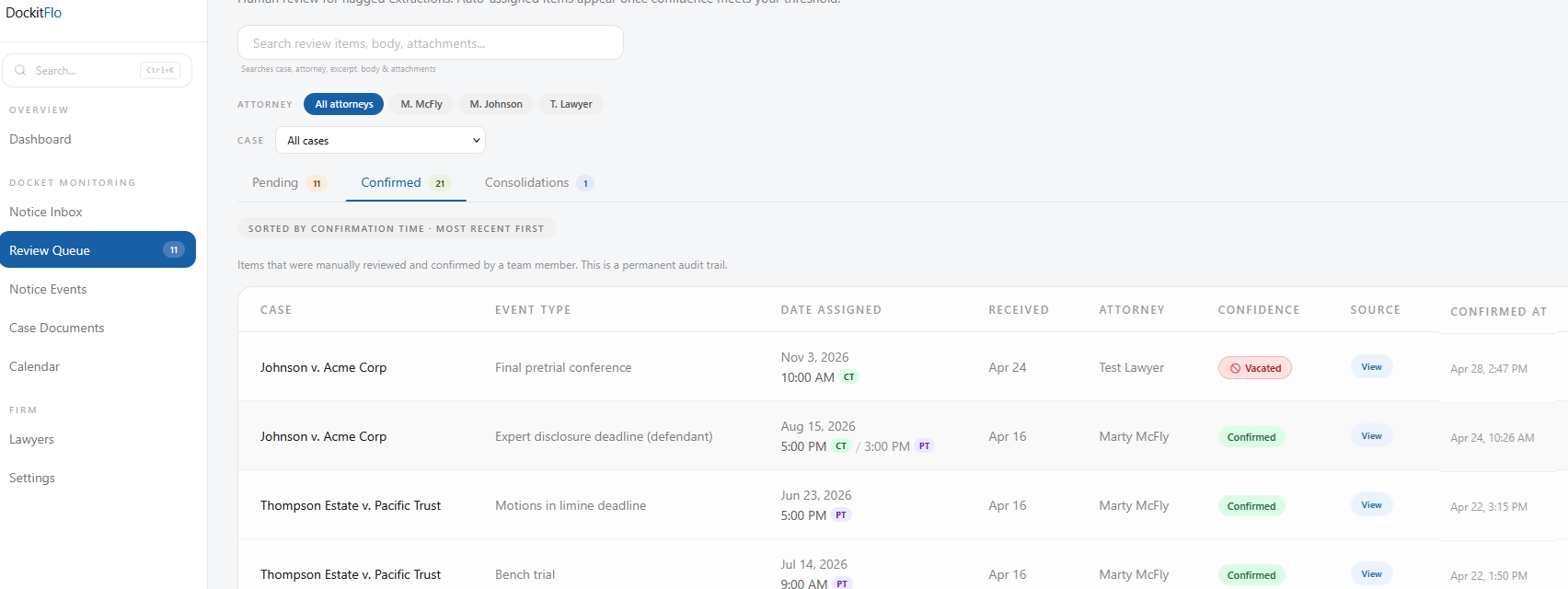
The pill changes the visual weight of the row deliberately. A vacate is not just another deadline to confirm, and it is not the same decision as a date change. The reviewer’s eye needs to catch it before they click through, because the consequence is event removal rather than event addition.
The vacate review modal
Clicking “Review & confirm” on a vacate candidate opens a modal designed specifically for this decision. It differs from the date-change modal in two important ways: there is only one panel (the event being vacated — no “new date” panel because none exists), and there is only one confirmation action.
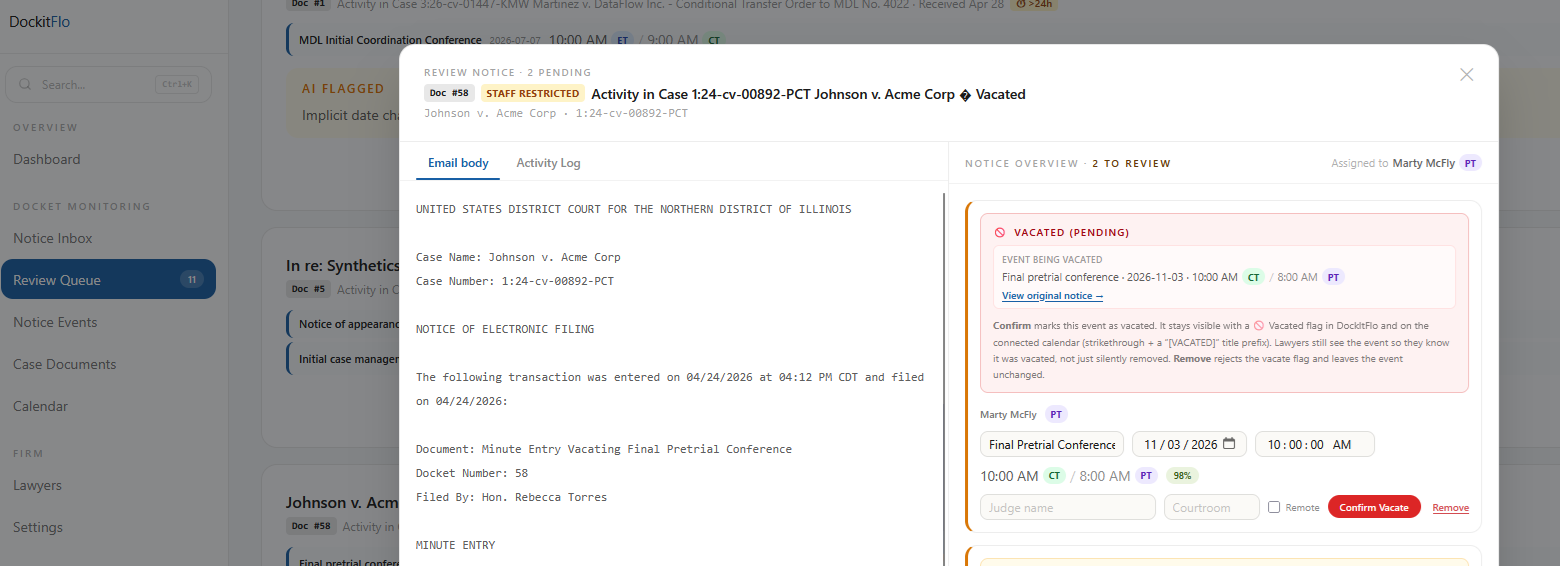
Three parts of the modal are worth noting:
The Vacated (pending) card. The red-bordered card at the top shows the event the new notice is proposing to cancel. The “Event being vacated” panel displays the existing calendar entry (event name, prior date, source document) with a “View original notice →” link. There is no “New in this notice” panel — vacated events have no replacement, and showing an empty panel would invite confusion.
Plain-language description of the consequence. Directly below the card, the modal explains in plain English what each action does: confirming marks the event as vacated and keeps it visible across DockItFlo with the red Vacated pill, and on the connected calendar with strikethrough and a [VACATED] title prefix — lawyers still see the event so they know it was vacated, not silently removed. Remove rejects the vacate flag and leaves the event unchanged. The reviewer is making a decision about an attorney’s calendar, and the system should never make them guess what a button does.
One action: Confirm Vacate. Unlike the date-change modal, which offers a choice between “Confirm Date Change” (supersede) and “Confirm Separate Deadlines” (keep both), the vacate modal has a single confirmation button. The reasoning is design-driven: a vacate is an event removal, and there is no coherent “keep both” option — you cannot have a hearing that has been vacated and a hearing that is still happening at the same time. A “Remove” option remains available for false positives where the AI flagged something that wasn’t actually a vacate, and the editable fields below let the reviewer correct any extraction detail before confirming.
Cross-checking against the original notice
When a reviewer wants to verify the match, clicking “View original notice →” on the “Event being vacated” panel opens the earlier notice in a linked modal. The original notice is presented with the affected event highlighted and a banner that summarizes the proposed vacate.
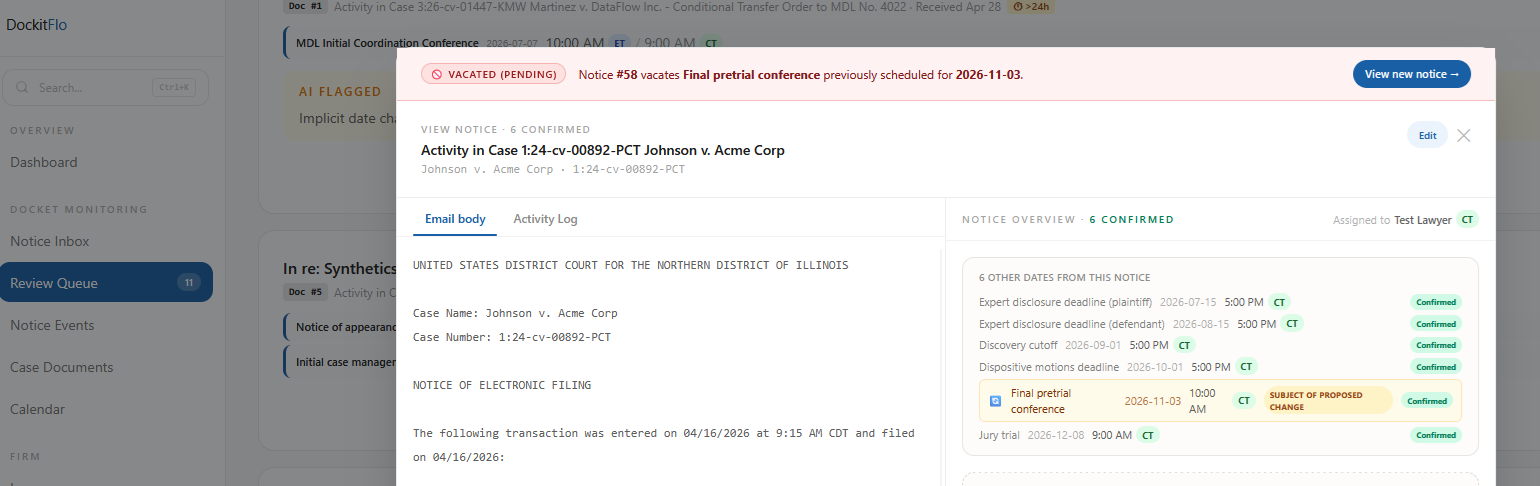
The cross-check uses the same three design choices that make the date-change cross-check work: a persistent banner at the top of the original notice, a one-click “View new notice →” button to jump back to the vacating notice without losing place in the queue, and a direct flag on the affected row in the notice overview so the reviewer can see at a glance that only one event is being touched and the rest of the case’s deadlines are unchanged.
Why vacate is a single-action decision
The date-change workflow gives the reviewer two confirmation paths because there are real cases where two events with similar names should both stay on the calendar — a hearing that was reset and a separate hearing on a related motion, for example. Vacate has no equivalent ambiguity. When a court vacates an event, the event is gone. The reviewer’s job is to verify that the AI matched the right event, not to choose between supersession and coexistence.
The product reflects this. The vacate modal omits the “Confirm Separate Deadlines” option entirely. The card shows only the event being cancelled. The CTA reads “Confirm Vacate” in red. Every visual choice points the reviewer toward a single decision: is this the right event? If yes, confirm. If no, remove the candidate.
This is the kind of design choice that keeps a feature trustworthy at scale. A reviewer processing forty notices on a Thursday afternoon should not have to think harder about a vacate than about a fresh deadline.
Audit trail and calendar consequences
When the reviewer clicks Confirm Vacate, three things happen:
- The original event is marked vacated in the database. The original event row stays in place — it is not deleted — but a supersession pointer links it to the vacating notice. The status changes so that every surface in DockItFlo (inbox, cases, calendar, review queue, confirmed tab) renders a red Vacated pill or strikethrough on the affected event.
- The activity log records the action. The case’s notice events log captures: who confirmed, when, the original event details, and a link to both the original notice and the vacating notice. After the fact, the firm can show exactly what happened to any vacated event and when the vacate was confirmed.
- The lawyer’s calendar is updated. When DockItFlo is connected to a lawyer’s Outlook or Google Calendar, the calendar event title is prefixed with
[VACATED], the event status is set tocancelled(Google) or marked as free time (Outlook), and the body of the event includes a note linking to the vacating order in the case’s document library. The event is preserved on the calendar so that any reference to it from email threads, meeting links, or attorney notes still resolves — but it is unambiguously off-calendar.
The decision to keep the calendar event in place rather than delete it is deliberate. Calendar events are referenced from outside the calendar — in email replies, in meeting invitations, in attorney work product. Deleting the underlying event breaks those references. Marking it vacated preserves the references while making it visually obvious that the event is no longer happening.
For more on the overall human-in-the-loop review model this feature sits inside, see Docket management for small law firms. For the closely related workflow that handles date moves rather than cancellations, see When a court moves a deadline: how DockItFlo handles docket date changes.
What DockItFlo does
DockItFlo detects vacated dates automatically when a new ECF notice cancels an event already on the firm’s calendar. Candidates are flagged across every surface with a red 🚫 Vacated pill. The review modal presents the affected event with a single Confirm Vacate action and one-click access to the original notice. On confirmation, the original event is preserved with a vacated status, the activity log records the full chain, and the lawyer’s calendar is updated with a [VACATED] prefix and a cancelled status. The AI proposes; the human confirms; the calendar reflects the decision.
Frequently asked questions
How does DockItFlo detect a vacated court date?
The AI agent cross-references each new ECF notice against existing calendar entries for the same case, looking for linguistic cues such as “hereby vacated,” “taken off calendar,” and “cancelled,” matching event types, and contextual references to prior notices or docket numbers. When the signals align and no replacement date is proposed, the item is flagged as a vacate candidate rather than a fresh deadline or a date change.
What happens when I confirm a vacated date?
The original calendar event is marked vacated (preserved, not deleted) and renders with a red Vacated pill across every DockItFlo surface. The case’s activity log records who confirmed and when, with links to both the original notice and the vacating notice. The lawyer’s connected Outlook or Google Calendar entry is updated with a [VACATED] prefix and a cancelled status, so the event remains referenceable but is unambiguously off-calendar.
Why isn’t there a “keep both” option for vacated dates?
Vacate is an event removal, not a replacement. There is no coherent reading where a hearing has been vacated and is still happening at the same time. The vacate modal therefore offers a single Confirm Vacate action, with a Remove option for false positives. By contrast, the date-change workflow offers both Confirm Date Change and Confirm Separate Deadlines because real cases exist where two similarly named events should both stay on the calendar.
Does DockItFlo delete the calendar event when a date is vacated?
No. The original event is preserved with a vacated status and a [VACATED] title prefix on the lawyer’s connected calendar. Calendar events are referenced from outside the calendar — in email threads, meeting invites, and attorney notes — and deleting the underlying event would break those references. Preserving the event with a clear vacated marker keeps references intact while making the cancellation visually obvious.
How do I verify a vacate candidate is a true match before confirming?
The review modal includes a “View original notice” link on the “Event being vacated” panel. Clicking it opens the earlier notice with a red VACATED (PENDING) banner summarizing the proposed vacate, and the affected event flagged in the Notice Overview. A “View new notice →” button jumps back to the vacating notice without losing the reviewer’s place in the queue.
Is the vacated event preserved in the audit trail?
Yes. The original event row stays in the database with a supersession pointer to the vacating notice, and the case activity log captures the full chain: original notice, vacating notice, who confirmed the vacate, and when. After the fact, the firm can show exactly what happened to any vacated event and why.