A federal court rarely sets a deadline once and leaves it alone. Dispositive motion deadlines get continued. Hearings get reset. Trial dates get moved. For a litigation firm, every one of these changes is a notice that has to be read, cross-referenced against an earlier notice, and reconciled on the calendar. Miss the reconciliation step and you end up with two conflicting deadlines sitting next to each other on the same attorney’s calendar, with no indication of which one is current.
This is one of the hardest parts of docket work for AI to get right, and one of the places where AI without human confirmation causes the most damage. DockItFlo now handles it end to end: the AI agent detects when a new notice is proposing a change to a previously calendared deadline, flags it distinctly in the review queue, surfaces both the old and new dates side by side, and lets a legal support professional confirm whether it’s a replacement or a separate event.
This article walks through how the feature works, why it matters, and what separates a well-designed date change workflow from a fragile one.
The date change problem, concretely
Consider a case with an April 8 scheduling order that sets eight deadlines. Two weeks later, the court issues an “Order Continuing Deadline” that reads:
ORDER CONTINUING DEADLINE: Upon the parties’ joint stipulation and for good cause shown, the deadline for all dispositive motions is hereby continued to May 14, 2026. All other deadlines in the April 8, 2026 Scheduling Order remain in effect.
That’s a single-date change sitting inside a cross-reference to a multi-date order. A human reading it understands immediately what to do: move the dispositive motions deadline from April 30 to May 14, leave everything else alone. But a docketing system has to do three things correctly to get the same result:
- Recognize that the new notice is proposing a change to an existing deadline, not adding a new one.
- Identify which existing deadline is being changed, across case, event type, and prior date.
- Preserve everything else on the original scheduling order untouched.
Get any of these wrong and the calendar breaks.
- Miss step 1 and you end up with two dispositive motions deadlines, one at April 30 and one at May 14, with no relationship between them. The attorney has no reliable way to know which is current.
- Miss step 2 and you might supersede the wrong event.
- Miss step 3 and you risk disturbing deadlines the court explicitly left in place.
Traditional docketing tools handle this by requiring the legal administrative assistant to do the entire reconciliation manually: find the original calendar entry, update it, note the change, preserve the audit trail. Basic AI tools typically miss it entirely and just create a second entry. DockItFlo’s approach is to let the AI agent do the detection and cross-referencing, then hand the decision to a human through a purpose-built interface.
How DockItFlo’s date change detection works
When a new ECF notice arrives, DockItFlo’s AI agent does everything it would normally do (full-document reading, multi-date extraction, confidence scoring) and then runs an additional check: does any extracted date appear to be a proposed change to a deadline already on the firm’s calendar?
The check uses three signals:
- Linguistic cues in the notice itself. Language like “continued to,” “reset to,” “rescheduled for,” “hereby continued,” and similar phrasing strongly suggests a date change.
- Case and event-type match against existing calendar entries. The agent looks for an existing deadline in the same case with a matching event classification (dispositive motions, hearing, discovery cutoff, etc.).
- Document context. References to a prior scheduling order, prior docket number, or explicit prior date increase the signal.
When the signals align, the agent labels the extraction as a date change candidate rather than a fresh deadline, and the item moves into the review queue with a distinct visual treatment.
What the review queue looks like for a date change
In the standard review queue, each pending item shows the case, the notice title, the number of dates extracted, and a confidence score. Date change candidates get an additional marker: a yellow POSSIBLE DATE CHANGE chip sits directly next to the case name, with a “Review closely” flag next to the confidence score.
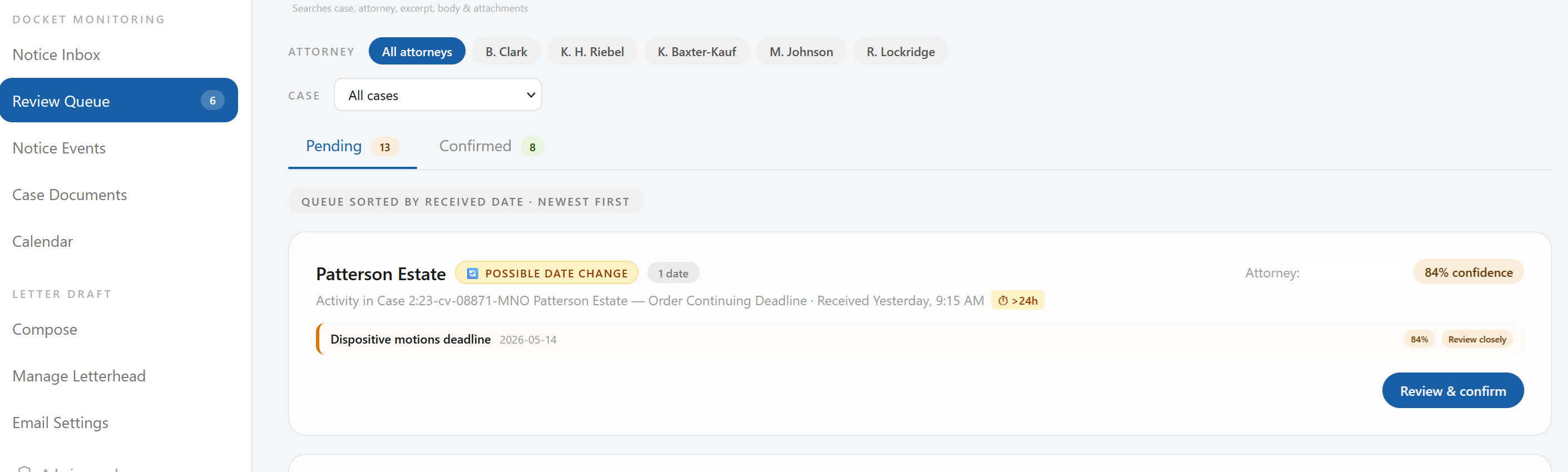
The chip changes the visual weight of the item on purpose. A date change is not just another deadline to confirm. It’s a decision with calendar-level consequences, and the reviewer’s eye needs to catch it before they click through.
The date change review modal
Clicking “Review & confirm” on a date change candidate opens a modal designed specifically for this decision. It differs from the standard review modal in one critical way: the extracted date is presented alongside the deadline it’s proposing to replace.
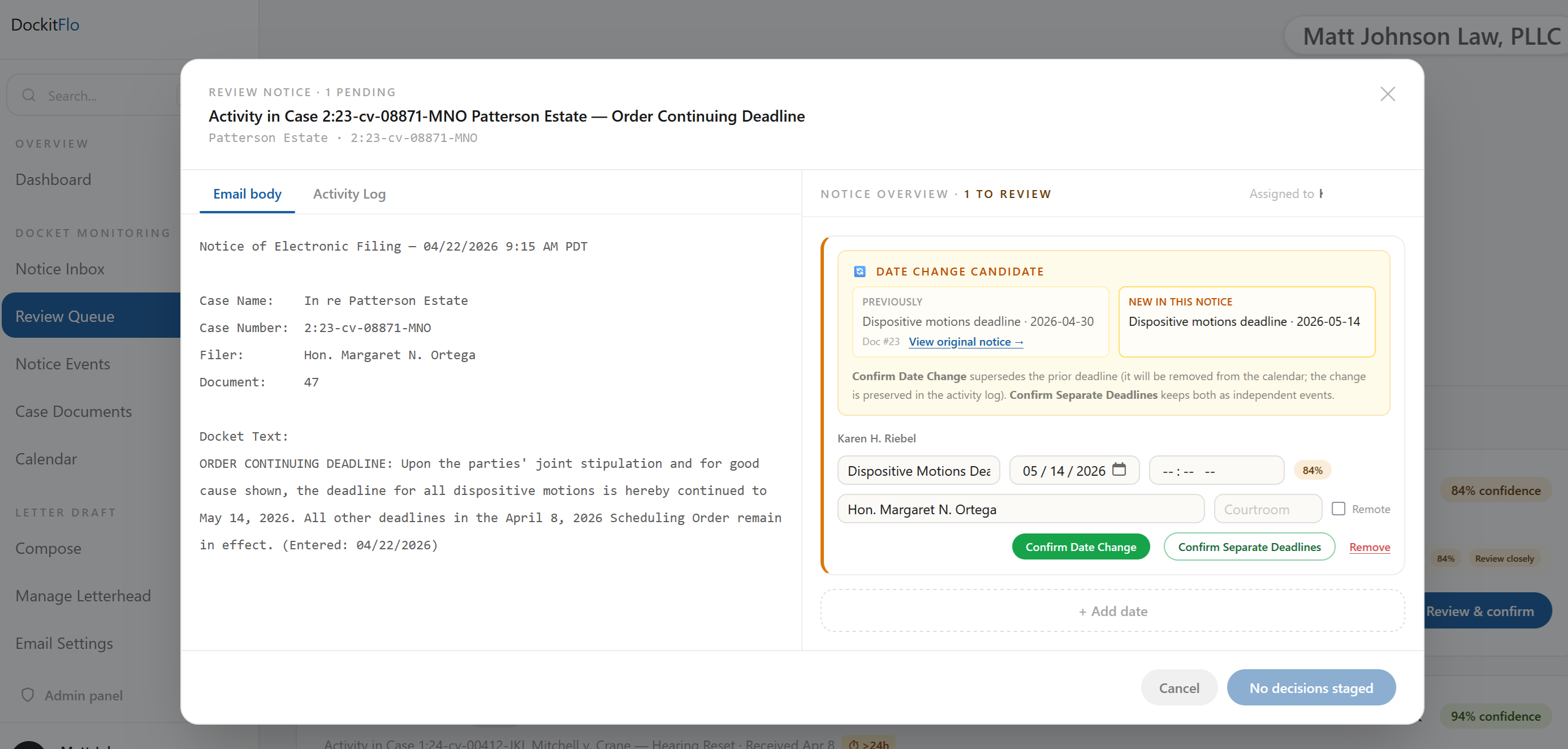
Three parts of the modal are worth noting:
The date change card. The yellow-bordered card at the top shows the old and new dates side by side. The “Previously” panel displays the existing calendar entry (event name, prior date, source document) with a “View original notice →” link. The “New in this notice” panel shows what the incoming notice is proposing. At a glance, the reviewer sees exactly what’s being moved, from where, to where.
Plain-language descriptions under the card. Directly below the card, the modal explains the consequences of each action in plain language: “Confirm Date Change supersedes the prior deadline (it will be removed from the calendar; the change is preserved in the activity log). Confirm Separate Deadlines keeps both as independent events.” This matters because the reviewer is making a decision about an attorney’s calendar, and the system should never make them guess what a button does.
Two explicit action paths. Confirm Date Change treats the new date as a replacement and supersedes the prior deadline. Confirm Separate Deadlines treats the two as distinct events and keeps both on the calendar. A Remove option is available for false positives. The editable fields below (event name, date, time, judge, remote/in-person) let the reviewer correct any extraction detail before confirming.
The docket text itself renders on the left side of the modal, so the reviewer can read the court’s actual language (“the deadline for all dispositive motions is hereby continued to May 14, 2026”) without leaving the screen.
Cross-checking against the original notice
When a reviewer wants to verify the match, clicking “View original notice →” on the “Previously” panel opens the earlier notice in a linked modal. The original notice is presented with the affected date highlighted.
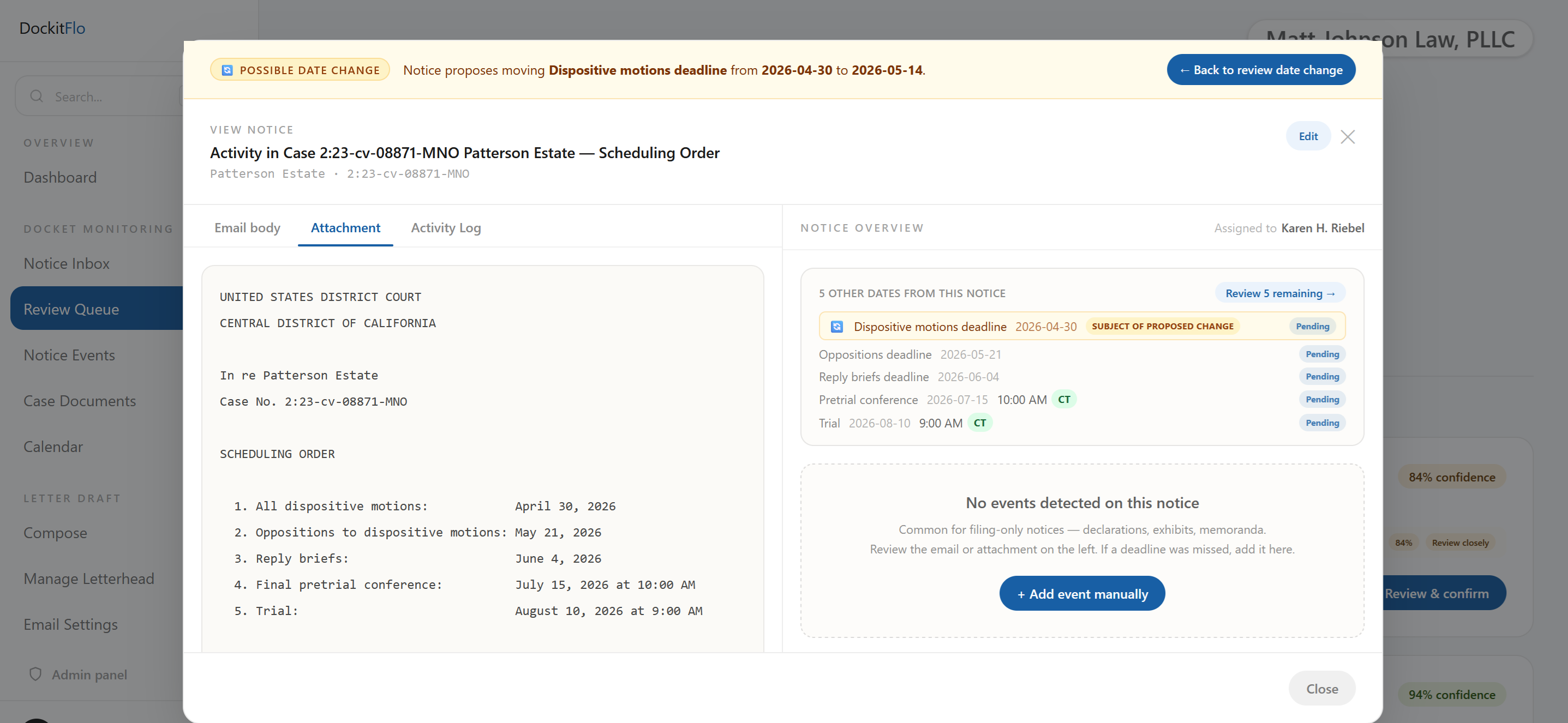
Three design choices make the cross-check work:
A persistent banner. At the top of the original notice, a banner reads “Notice proposes moving Dispositive motions deadline from 2026-04-30 to 2026-05-14.” The reviewer never loses context about why they’re looking at this notice.
A “Back to review date change” button. The modal provides a one-click path back to the review decision. The reviewer can open the original, verify the match, and return to confirm without losing their place in the queue.
A direct flag on the affected row. In the Notice Overview panel, the dispositive motions deadline carries a SUBJECT OF PROPOSED CHANGE label. The other dates in the scheduling order remain marked as Pending. The reviewer sees immediately that the date change affects only one of the deadlines and that the rest of the scheduling order is unchanged. This addresses the third failure mode from the opening example: the risk of disturbing deadlines the court explicitly left in place.
Why “replace vs keep both” has to be a human decision
The AI can flag a date change candidate with high accuracy. What it cannot do reliably, across every variation of court language and every odd procedural posture, is know with certainty whether a given notice is a true replacement or whether the firm needs to preserve both events for some case-specific reason.
Examples of the edge cases that require human judgment:
- A hearing notice that looks like a reset but is actually a second hearing on a related motion, where the first hearing still stands.
- A scheduling amendment that moves a deadline on paper but is being contested by one of the parties, and the firm wants to keep the old date visible until the motion to reconsider is resolved.
- A notice that references a prior deadline using slightly different event language, where a human reviewer knows from case context that the two are the same but the AI is appropriately uncertain.
These are judgment calls, and they belong with the paralegal or LAA who knows the case. DockItFlo’s job is to detect the candidate, surface both notices side by side, explain the consequences of each action in plain English, and execute whichever decision the human makes cleanly. The AI proposes; the human confirms.
Audit trail and what happens after confirmation
Whichever path the reviewer chooses, the system records the full decision chain:
- Confirm Date Change supersedes the prior deadline. The old event is removed from the attorney’s calendar. The original notice and the superseding notice are both preserved in the case’s activity log, linked to the change. The new event carries a reference to the event it replaced.
- Confirm Separate Deadlines keeps both events on the calendar as independent items. Each notice remains linked to its respective event in the activity log.
- Remove drops the candidate entirely, with a note in the activity log.
The audit trail matters for the same reason every other part of the workflow matters: deadline management is professional responsibility work, and a firm needs to be able to show, after the fact, exactly what happened to any given deadline and why.
For more on the overall human-in-the-loop review model this feature sits inside, see Docket management for small law firms. For how extraction itself works on the incoming notice, see How AI extracts court deadlines from PACER notices.
What DockItFlo does
DockItFlo detects proposed date changes automatically when a new ECF notice references or implies a change to an existing deadline. Candidates are flagged in the review queue with a yellow POSSIBLE DATE CHANGE chip and a Review closely marker. The review modal presents the old and new dates side by side, with one-click access to the original notice and plain-English descriptions of the consequences of each confirmation path. The reviewer chooses Confirm Date Change, Confirm Separate Deadlines, or Remove. The full chain is preserved in the case’s activity log. The AI proposes; the human confirms; the calendar reflects the decision.
Frequently asked questions
How does DockItFlo detect a court date change?
The AI agent cross-references each extracted date against existing calendar entries for the same case, looking for linguistic cues such as “continued to,” “reset to,” or “rescheduled for,” matching event types, and contextual references to prior notices or docket numbers. When the signals align, the item is flagged as a date change candidate rather than a fresh deadline.
What happens if a new notice changes a deadline I already have on the calendar?
DockItFlo flags the new notice with a POSSIBLE DATE CHANGE chip in the review queue and opens a dedicated review modal that shows the old and new dates side by side. The reviewer can confirm the change (superseding the prior deadline), keep both events as separate items, or remove the candidate entirely. Nothing changes on the attorney’s calendar until the reviewer confirms.
Does the system replace the old deadline automatically?
No. Date change confirmation is always a human decision. The AI detects the candidate and presents both the prior and proposed deadlines, but the reviewer chooses whether to supersede, keep both as separate events, or reject the change. This is a deliberate design choice: replace-versus-keep-both is the kind of judgment call that belongs with the legal support professional who knows the case.
What’s the difference between Confirm Date Change and Confirm Separate Deadlines?
Confirm Date Change treats the new date as a replacement. The prior deadline is removed from the attorney’s calendar, and the change is preserved in the case activity log. Confirm Separate Deadlines treats the two as independent events and keeps both on the calendar. Use the first when the new notice clearly supersedes the old deadline. Use the second when case context indicates the two are different events that should coexist.
How do I verify a date change is a true match before confirming?
The review modal includes a “View original notice” link on the “Previously” panel. Clicking it opens the earlier notice with a banner summarizing the proposed change and the affected deadline flagged as SUBJECT OF PROPOSED CHANGE in the notice overview. A “Back to review date change” button returns the reviewer to the confirmation screen without losing their place in the queue.
Is the date change preserved in the audit trail?
Yes. Every date change decision (supersede, keep both, or remove) is recorded in the case’s activity log, with links to both the original notice and the superseding notice. After the fact, the firm can show exactly what happened to any deadline and why.